


Watch this video to see how to sign your document
Or, follow these instructions to see how to sign your document:
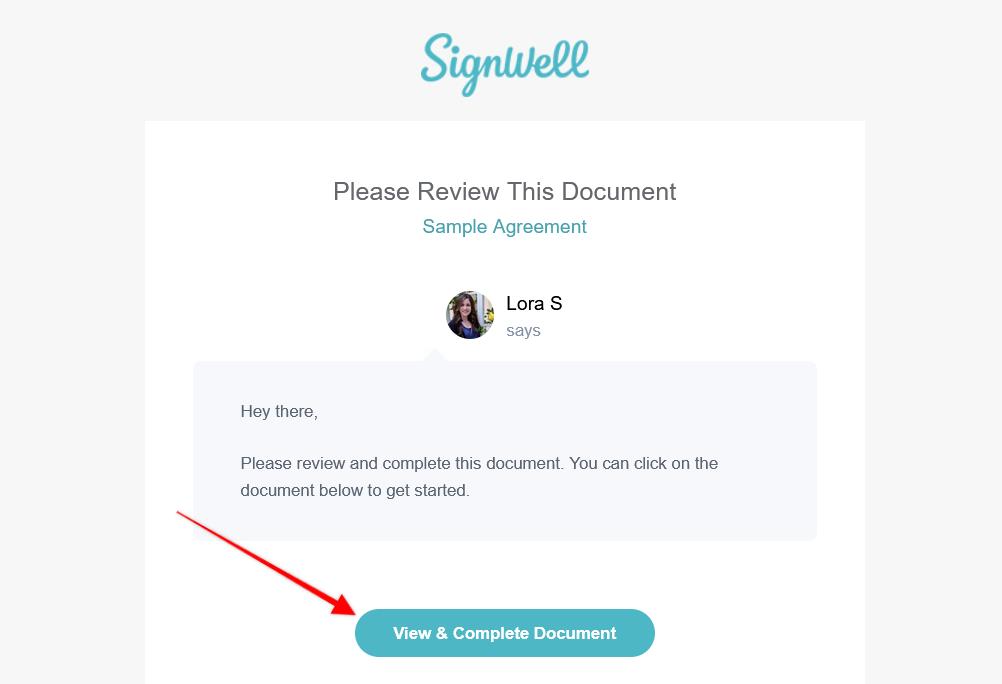
If you have received a document through SignWell, you’ll need to click on the link in the email message to view and begin signing it:
Note: The email address that the document signing request will come from is signwelldocs@signwell.com
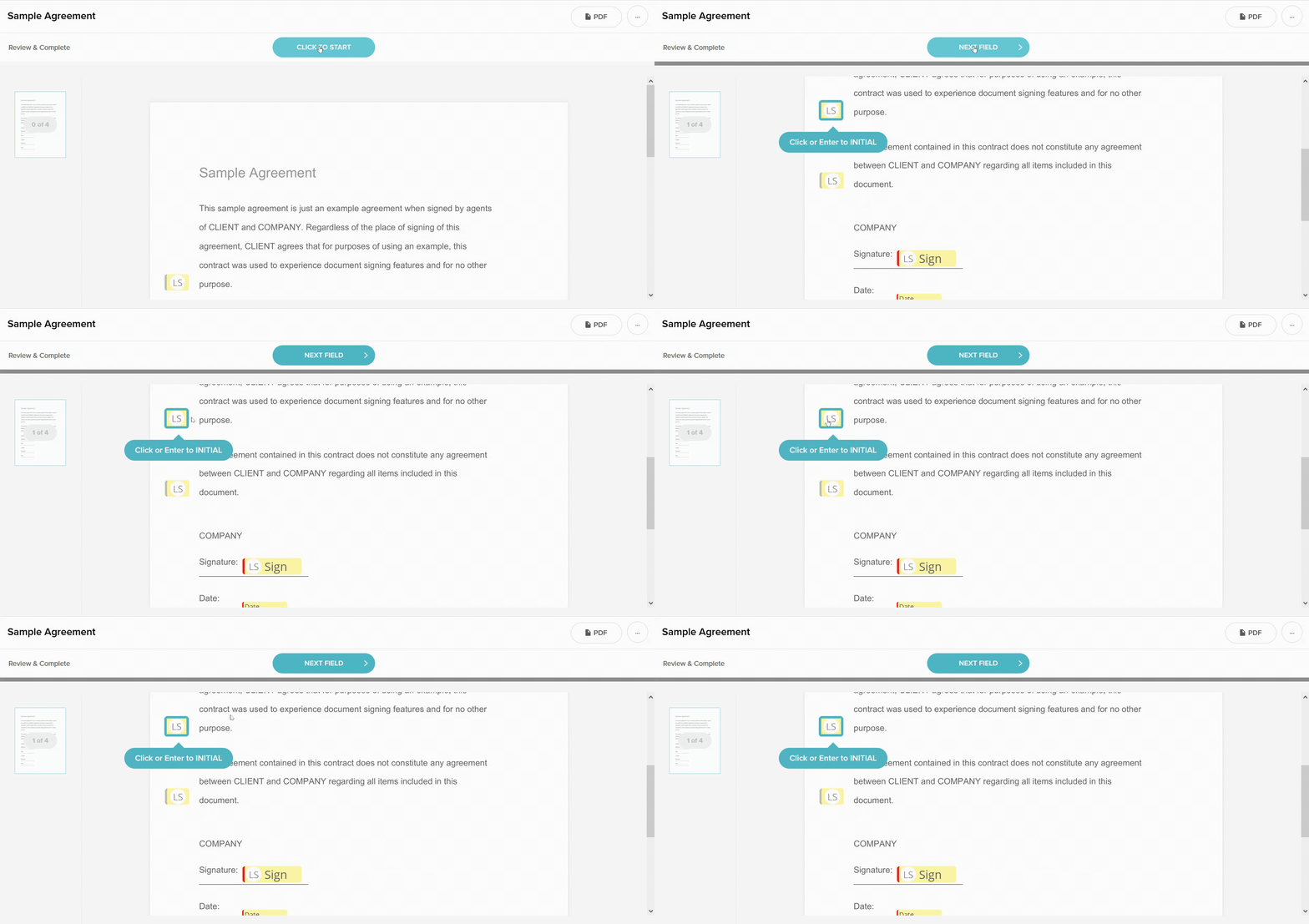
Once you’ve click the link in the email message, you’ll be taken to the document. To begun, click the “Click to Start” button and this will take you to the first field of the document:
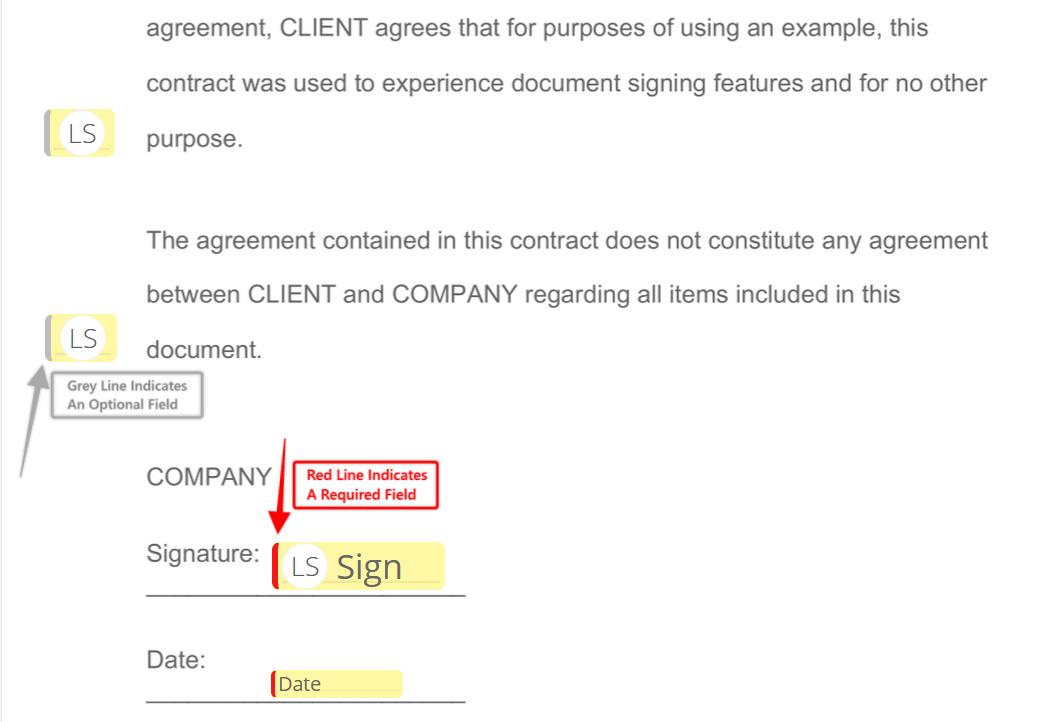
If a field is required, it must be completed to finalise the document. However, if a field is not required (which you can distinguish by a grey vertical line to the left of the field), then the field is optional and does not need to be completed in order to finalise the document:
Once you’re done filling out a field, hit the “tab” key on your keyboard or click on the “Next Field” button to go to the next field:
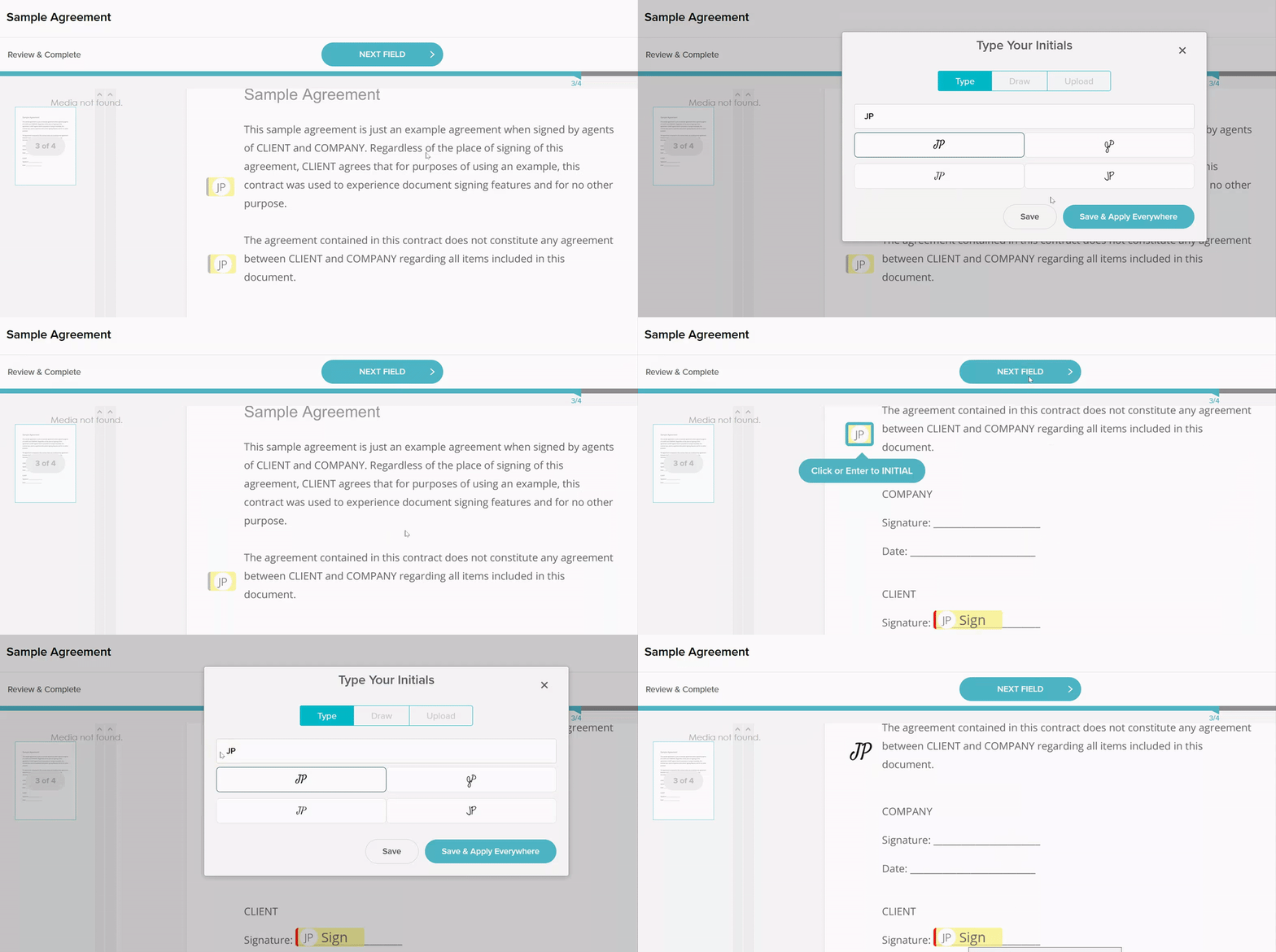
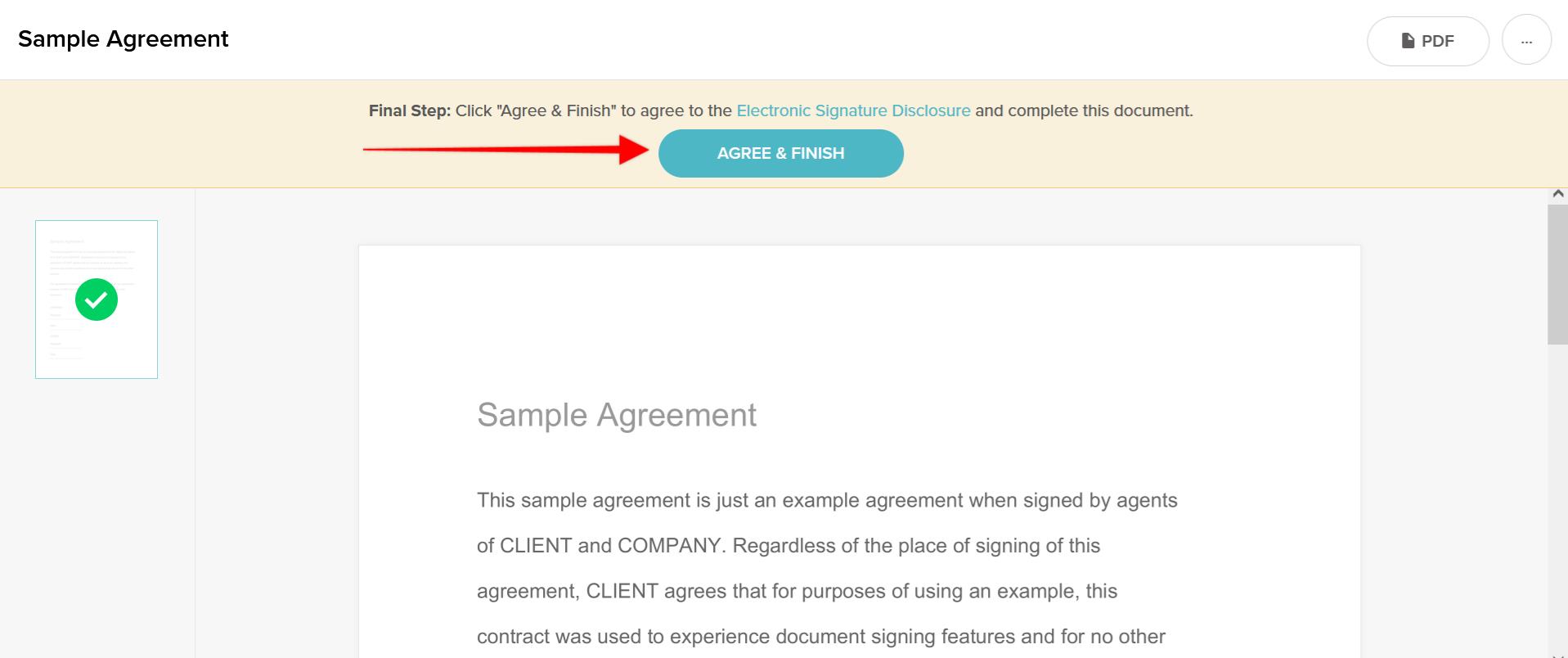
When you have filled out all of the required fields, you’ll see an “Agree & Finish” button at the top of your page. Click on this to finalise the document. Note: Once you click this button, you won’t be able to make any changes to the fields that you’ve filled out, so only click on this if you’re ready to complete the document:
Once you have clicked on “Agree & Finish” to finalise the document you will be emailed a copy of the signed document. If there are multiple signers to the document you will receive an email once all signers have signed.
If you have any questions regarding the process then please contact our business support team at businesssupport@rchca.co.uk
We love meeting new businesses. Get in touch with our team today to see how we can help you and your business.
We love meeting new businesses. Get in touch with our team today to see how we can help you and your business.
Don’t miss our future updates! Get Subscribed Today!
Registered to carry out audit work in the UK and regulated for a range of investment business activities by the Institute of Chartered Accountants in England and Wales
©2024 RCH Accountants Limited. All Rights Reserved.